
Automation
Automation & Daily Chronicles
Having mastered the fundamentals in Parts 1 and 2, you’re now ready for automation techniques that eliminate repetitive work. This is Part 3 of our series:
Chapter V: The Art of Automation
Why Templates Transform Your Workflow
“Watson,” Holmes observed, “I notice you creating each contact manually with the same headers repeatedly. Templates capture the structure of our thinking and reproduce it instantly while ensuring consistency across all case files.”
Traditional note-taking forces you to recreate the same structure repeatedly—wasting time and introducing inconsistencies. Templates eliminate this inefficiency by capturing your best practices and reproducing them instantly. Think of templates as crystallized intelligence: once you determine the optimal structure for a type of document, you never need to recreate it manually again.
How do I install the Templater plugin?

How do I set up my template infrastructure?
The People Template: Automation Excellence
“Now observe, Watson, how we shall create a template that not only generates a properly formatted person note, but intelligently prompts for information and files everything in its correct location.”
How do I create the People template?
<%*
const personName = await tp.system.prompt("Enter person's name");
const imageName = await tp.system.prompt("Enter image filename (e.g., watson-profile.png)");
%>---
tags:
  - People
created: <% tp.file.creation_date("YYYY-MM-DD") %>
image: <% imageName %>
---

---

## <% personName %>

---

![[<% imageName %>]]

---

## Notes

---

<%*
await tp.file.rename(personName);
await tp.file.move("/2 Assets/People/" + personName);
%>Each element serves a specific purpose, Watson:
<%* ... %>: JavaScript execution blocks that run when the template activatestp.system.prompt(): Interactive prompts that request user input<% ... %>: Output blocks that insert generated contenttp.file.creation_date(): Automatically inserts the current dateawait tp.file.rename(): Automatically renames the file with the person’s nameawait tp.file.move(): Automatically files the note in the correct location
How do I configure the template hotkey?
The Case Template: Complete Investigation Framework
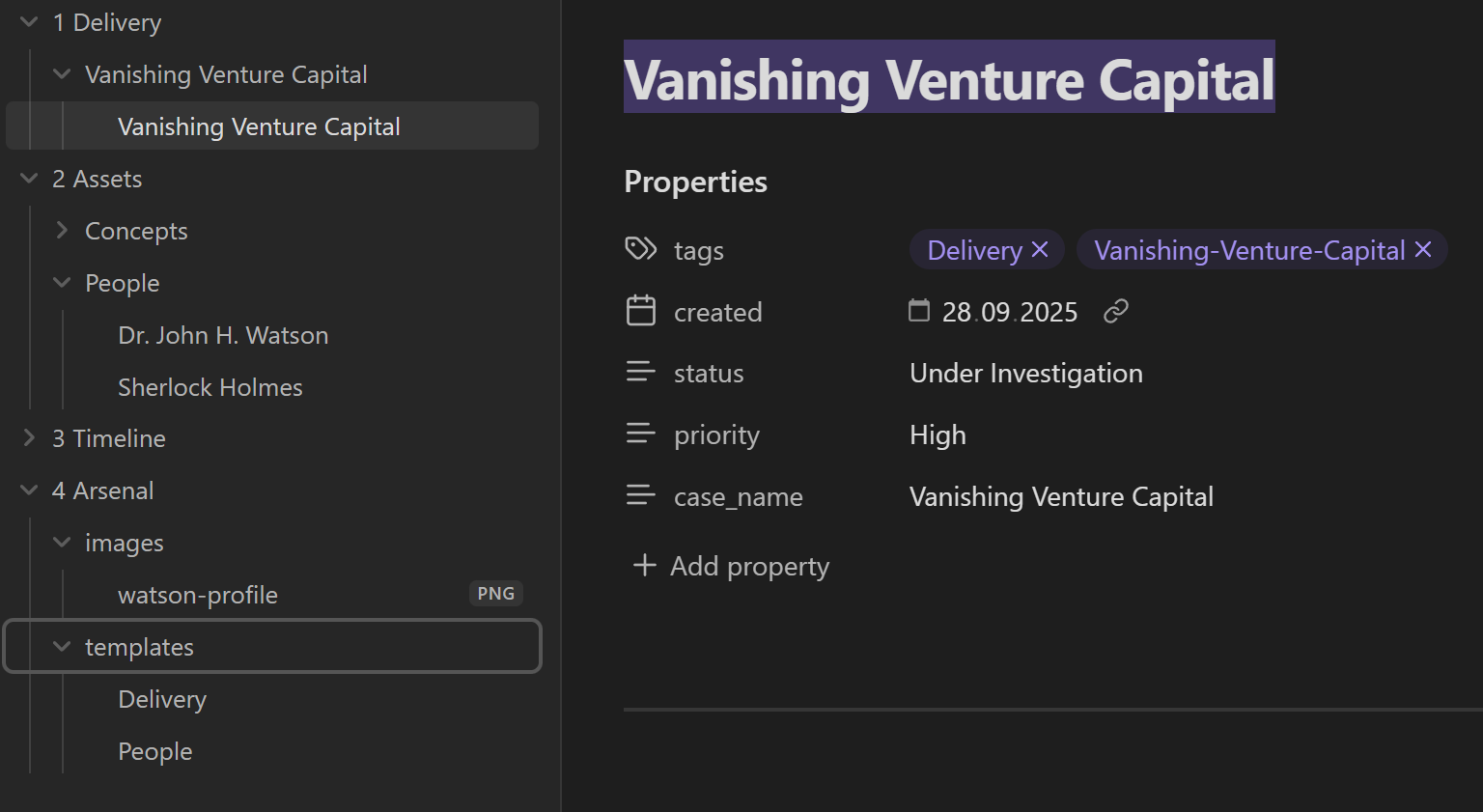
How do I create the Delivery template?
<%*
const deliveryName = await tp.system.prompt("Enter case name");
const priority = await tp.system.suggester(
    ["High", "Medium", "Low"],
    ["High", "Medium", "Low"],
    false,
    "Select priority"
);
%>---
tags:
  - Delivery
  - <% deliveryName.replace(/\s+/g, '-') %>
created: <% tp.file.creation_date("YYYY-MM-DD") %>
status: Under Investigation
priority: <% priority %>
case_name: <% deliveryName %>
---

---

# <% deliveryName %>

## Case Summary

Brief description of the <% deliveryName %> investigation.

## Objectives

- [ ] Identify primary suspects
- [ ] Gather physical evidence
- [ ] Establish timeline
- [ ] Determine motive

## Resources

### Personnel Assigned
- [[Sherlock Holmes]]
- [[Dr. John H. Watson]]

### Evidence Collected
-

### Related Cases
-

## Investigation Log

### <% tp.date.now("YYYY-MM-DD") %>
- Case opened

## Suspects & Persons of Interest

| Name | Motive | Alibi | Status |
|------|--------|-------|--------|
| | | | |

---

## Next Actions

- [ ] Interview primary witnesses
- [ ] Examine crime scene
- [ ] Research background information

---

<%*
await tp.file.rename(deliveryName);
await tp.file.move("1 Delivery/" + deliveryName + "/" + deliveryName);
%>- Dynamic Tags:
<% deliveryName.replace(/\s+/g, '-') %>creates a tag based on the case name - Default Values: The priority prompt forces hardcoded choices ensuring no typos.
- Checkbox Lists:
- [ ]creates interactive task lists for tracking progress - Table Structure: Pre-formatted table for suspect information
- Auto-Organization: Creates both folder and file with the same name structure
How do I set up the Delivery template hotkey?
Meeting Documentation Template
Create Meeting in 4 Arsenal/templates and paste the following:
<%*
const projectNames = [... new Set(app.vault.getMarkdownFiles().map(f => f.path).filter(path => path.startsWith("1 Delivery")).map(path => path.split("/")[1]))].filter(name => !name.endsWith(".md"));
const projectName = (await tp.system.suggester((item) => item, projectNames, true, "Select Case"));
const chosenDate = await tp.system.prompt("Meeting date:", tp.date.now("YYYY-MM-DD"));
const meetingType = await tp.system.prompt("Meeting type (e.g., Client Interview, Evidence Review, Team Briefing)");
%>---
case: '[[<% projectName %>]]'
date: '[[<% chosenDate %>]]'
attendees:
  - "[[Sherlock Holmes]]"
  - "[[Dr. John H. Watson]]"
type: <% meetingType %>
tags:
  - Meeting
---
---

## Agenda & Objectives

-
---
## Key Observations

-
---
## Deductions & Next Steps
- [ ]

<%*
await tp.file.rename(chosenDate + " " + meetingType);
await tp.file.move("/1 Delivery/" + projectName + "/Meetings/" + chosenDate + " " + meetingType);
%>“Notice, Watson, how this template demonstrates true intelligence—it automatically discovers all existing cases and presents them as options. This is dynamic adaptation, not mere static reproduction.”
app.vault.getMarkdownFiles(): Scans all files in the vault.filter(path => path.startsWith("1 Delivery")): Finds only delivery filestp.system.suggester(): Creates a selection menu from available options- Automatic Filing: Places the meeting in the correct case folder structure
How do I configure and test the Meeting template?
“Now, Watson, we must document our client properly. Paste the provided image anywhere in any note. Ensure it is called reginald.png and remove the link from the note; that should keep the image but remove the internal link. Then use your People template (Ctrl+Shift+P) to create Reginald Pumpernickel’s profile.”

“Finally, ensure proper organization by dragging both Sherlock Holmes and Dr. Watson notes into the 2 Assets/People folder if they aren’t already there. Systematic organization, Watson—it’s what separates us from the common constabulary.”

Chapter VI: The Daily Chronicle
Systematic Observation Records
“Daily notes capture not just events, but our analytical process itself,” Holmes declared. “They serve multiple critical functions: pattern recognition, memory reinforcement, connection discovery, and progress tracking.”
Daily notes transform scattered thoughts into systematic intelligence. They serve as your investigative memory, pattern recognition system, and progress tracker. When you review patterns across weeks or months, connections emerge that would otherwise remain hidden in the chaos of daily life.
Creating Your Daily Template
How do I create my Daily template?
```calendar-nav
```

## Today's Investigations
- [ ]

## Observations
-

## Deductions in Progress
-
Monthly Review Template
Create New Template: In 4 Arsenal/templates, create note named Monthly
```calendar-nav
```

```calendar-timeline
mode: week
```

## Overall review
- [ ]
Setting Up the Journals Plugin
How do I install and configure the Journals plugin?
How do I configure the Journals plugin settings?
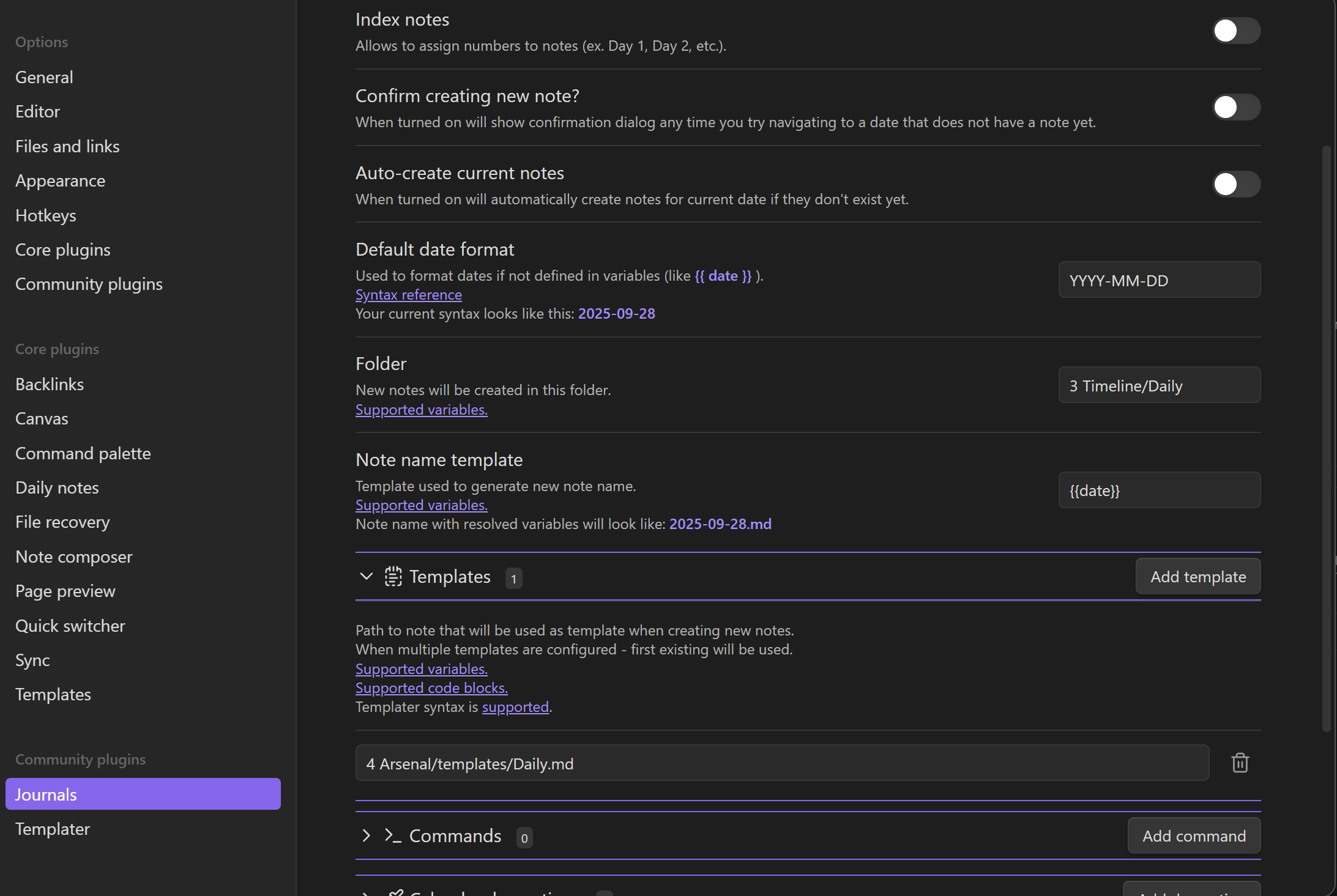

How do I set up the interface for daily workflow?


Professional Formatting with Callouts
Transform basic observations into professional documentation. In the Daily Note you just created:

 > [!info] Information
 > [!warning] Warning
 > [!success] Success
 > [!question] Question
 > [!quote] Quote
Chapter VII: The Taxonomy of Investigation
Understanding Information Architecture with LATCH
“Watson,” Holmes observed while examining his case files, “information without organization is merely chaos. Richard Saul Wurman’s LATCH principle provides us with five fundamental ways humans organize information: Location, Alphabet, Time, Category, and Hierarchy.”
Hierarchical Tag Systems in Action
“Now observe, Watson, how we shall transform our flat tag system into an intelligent hierarchy that mirrors the structure of our investigations.”
How do I access the tag system?

-
Click on “Meeting” tag: This shows all notes with the Meeting tag
-
Open your Client Interview meeting: Navigate to the meeting note you created earlier
-
Edit the Tag: In the frontmatter, change:
tags:
  - Meeting
To:
tags: - Meeting/Client-Interview/Vanishing-Venture-Capital -
Add Contextual Tags: Within the note content, add relevant tags using the
#format:During the interview, client showed signs of #nervousness and #deception. Key topics discussed: #financial-records #missing-documents #timeline

Tags vs Links: The Strategic Difference
Tags: Best for categorization and filtering
- Use for: status indicators, case types, evidence categories, priority levels
- Example:
#high-priority,#financial-crime,#witness-statement
Links: Best for creating relationships and connections
- Use for: connecting people, places, cases, and concepts
- Example:
[[Reginald Pumpernickel]],[[Vanishing Venture Capital]],[[Baker Street]]
“In my experience, Watson, links prove more valuable than tags for investigative work. Links create the web of connections that reveal patterns—they show relationships between elements.”
Avoid the amateur mistake of over-tagging every concept. If you find yourself creating tags like #person, #place, or #thing, you’re duplicating the work that links already accomplish more effectively. Reserve tags for genuine categorization needs: priority levels, status indicators, or case types.
Systematic Foundation Complete
- Template Mastery: Automated creation with intelligent filing
- Daily Chronicles: Systematic observation through structured reviews
- Hierarchical Organization: Strategic tag systems for categorization
- Professional Presentation: Enhanced formatting with authority
- Systematic Integration: Cohesive investigation system
From manual repetition to automated consistency, from scattered observations to systematic chronicles, from flat organization to hierarchical intelligence. You now possess the automation skills that separate the efficient detective from the overwhelmed amateur.
Next Steps:
Part 4 focuses on visual intelligence and professional presentation with graph view mastery, while Part 5 creates dynamic intelligence networks that adapt to your investigations.